.jpeg)
Modurotolu Olokode
Modurotolu Olokode is a seasoned full-stack engineer with a decade of experience in building scalable applications. Modurotolu is passionate about solving problems with technology and loves sharing insights that empower developers to make informed technical decisions.
Article by Gigson Expert
React Native enables developers to build cross-platform mobile applications with JavaScript; however, achieving native-like performance requires an understanding of the framework's architecture and avoiding common mistakes. Poorly optimized code results in janky animations, slow list scrolling, and sluggish interactions that frustrate users and damage the app's reputation.
Understanding React Native’s Architecture
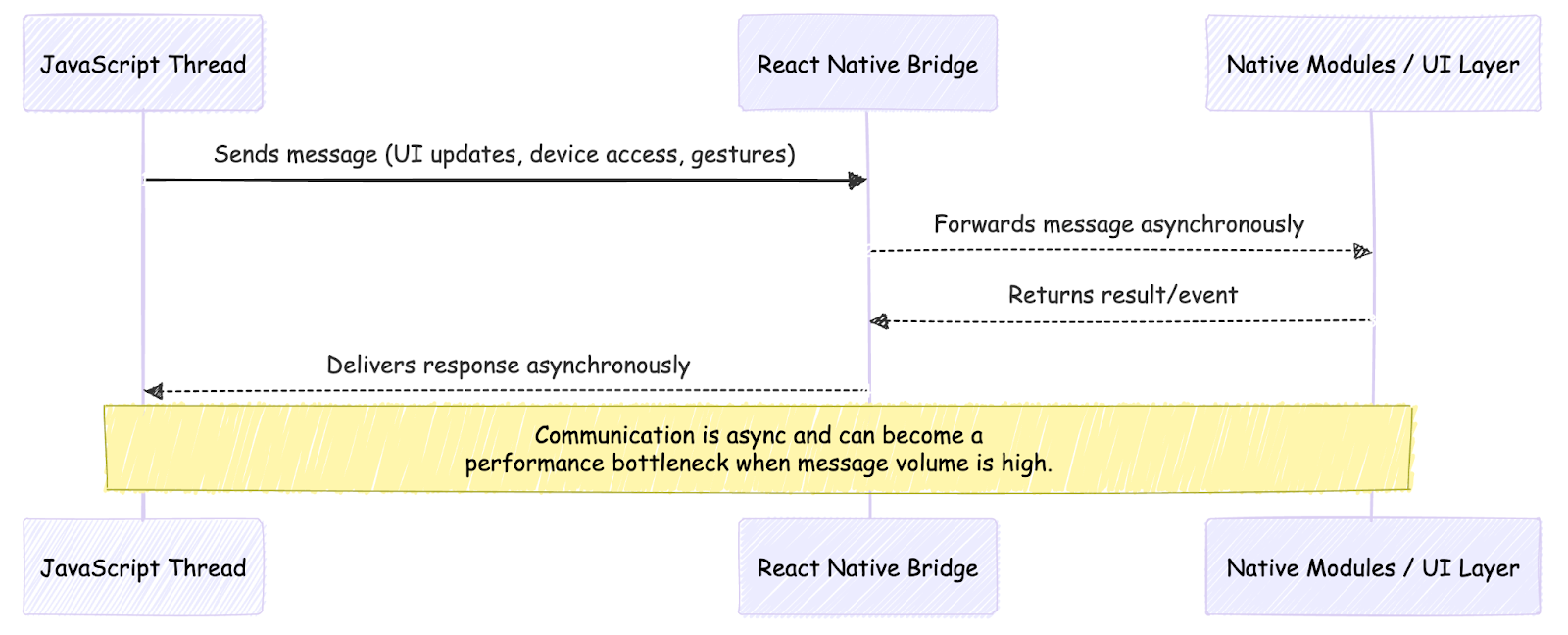
React Native runs JavaScript and native code on separate threads, communicating via a message-passing system known as the bridge.
Architecture Flow (Legacy)
- JavaScript thread: business logic, state updates, rendering
- Native thread: UI rendering and platform APIs
- Bridge: asynchronous communication between the two
Because communication is asynchronous, excessive bridge traffic or blocking the JavaScript thread quickly becomes a bottleneck.
Note: The New Architecture (Fabric & TurboModules) improves synchronization, memory usage, and startup time, but most production apps still rely on the legacy architecture. Optimization fundamentals remain critical.
Understanding this separation explains why:
- Heavy JS computations block UI updates
- Excessive prop/state updates degrade scrolling and animations
React Native operates on a unique architecture where JavaScript code runs separately from native code, communicating through a "bridge." This asynchronous message-passing system becomes a bottleneck when overused. Every time JavaScript needs to interact with native components, updating UI, accessing device features, or handling gestures, messages traverse this bridge.
Pitfall #1: Unnecessary Re-renders
React components re-render whenever their props or state change. In React Native, unnecessary re-renders are particularly costly because they trigger native view updates through the bridge. A parent component re-rendering causes all children to re-render by default, even when their props remain unchanged.
Parent re-render forcing children to re-render
// ❌ Bad: Parent re-renders force all items to re-render
const ProductList = ({ products, onAddToCart }) => {
  const [cartCount, setCartCount] = useState(0);

  return (
    <FlatList
      data={products}
      renderItem={({ item }) => (
        <ProductCard
          product={item}
          onAddToCart={() => {
            onAddToCart(item);
            setCartCount(cartCount + 1);
          }}
        />
      )}
    />
  );
};
Preventing re-renders with memoization
// ✅ Good: Memoize items and extract callbacks
const ProductCard = React.memo(({ product, onAddToCart }) => {
  return (
    <TouchableOpacity onPress={onAddToCart}>
      <Text>{product.name}</Text>
      <Text>${product.price}</Text>
    </TouchableOpacity>
  );
});

const ProductList = ({ products, onAddToCart }) => {
  const [cartCount, setCartCount] = useState(0);

  const handleAddToCart = useCallback((item) => {
    onAddToCart(item);
    setCartCount(prev => prev + 1);
  }, [onAddToCart]);

  const renderItem = useCallback(({ item }) => (
    <ProductCard
      product={item}
      onAddToCart={() => handleAddToCart(item)}
    />
  ), [handleAddToCart]);

  return (
    <FlatList
      data={products}
      renderItem={renderItem}
      keyExtractor={item => item.id}
    />
  );
};
Why this matters
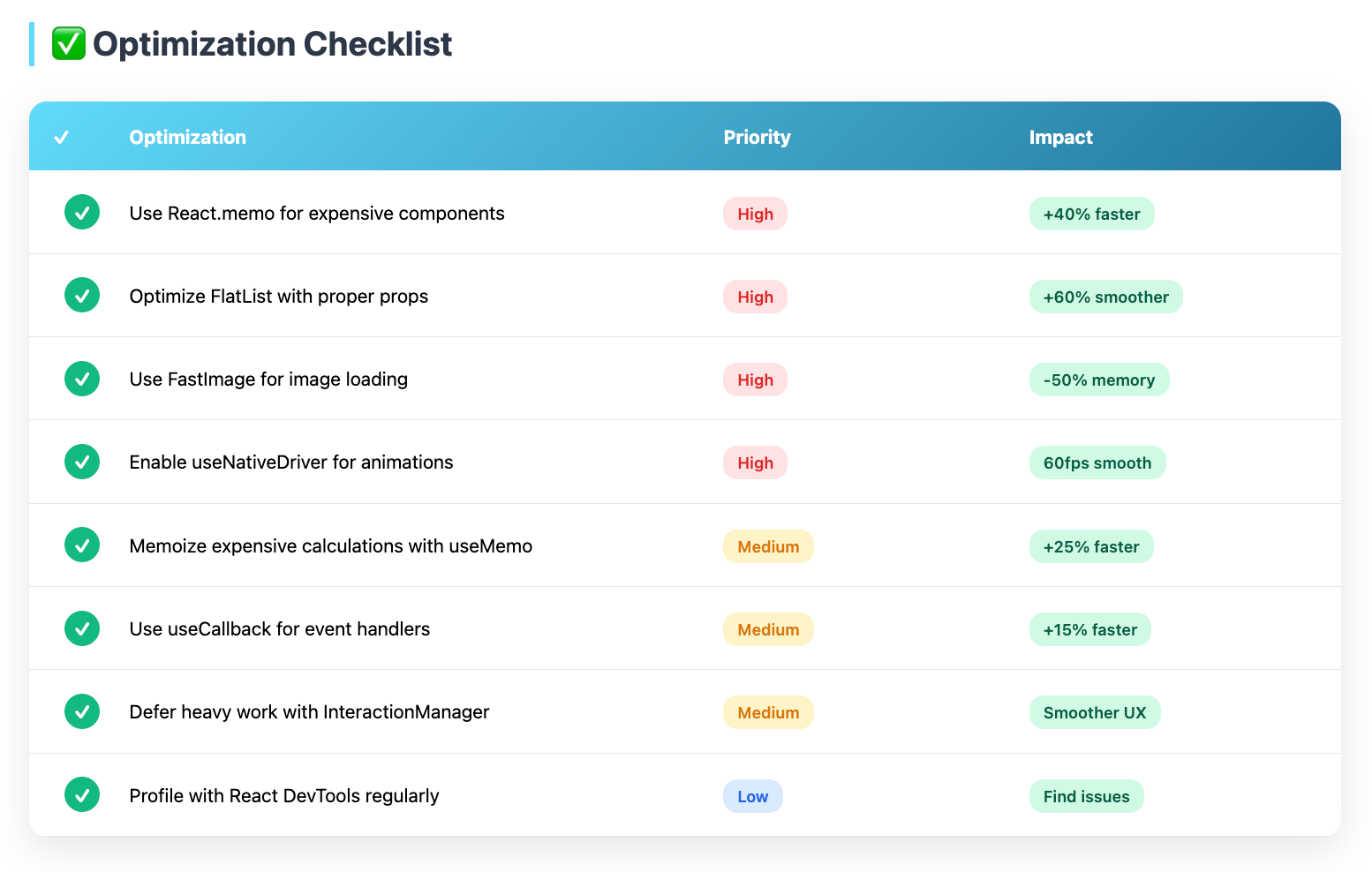
React.memo prevents re-renders when props haven't changed, while useCallback ensures function references remain stable across renders. These optimizations become critical in lists with dozens or hundreds of items.
Pitfall #2: Inefficient List Rendering
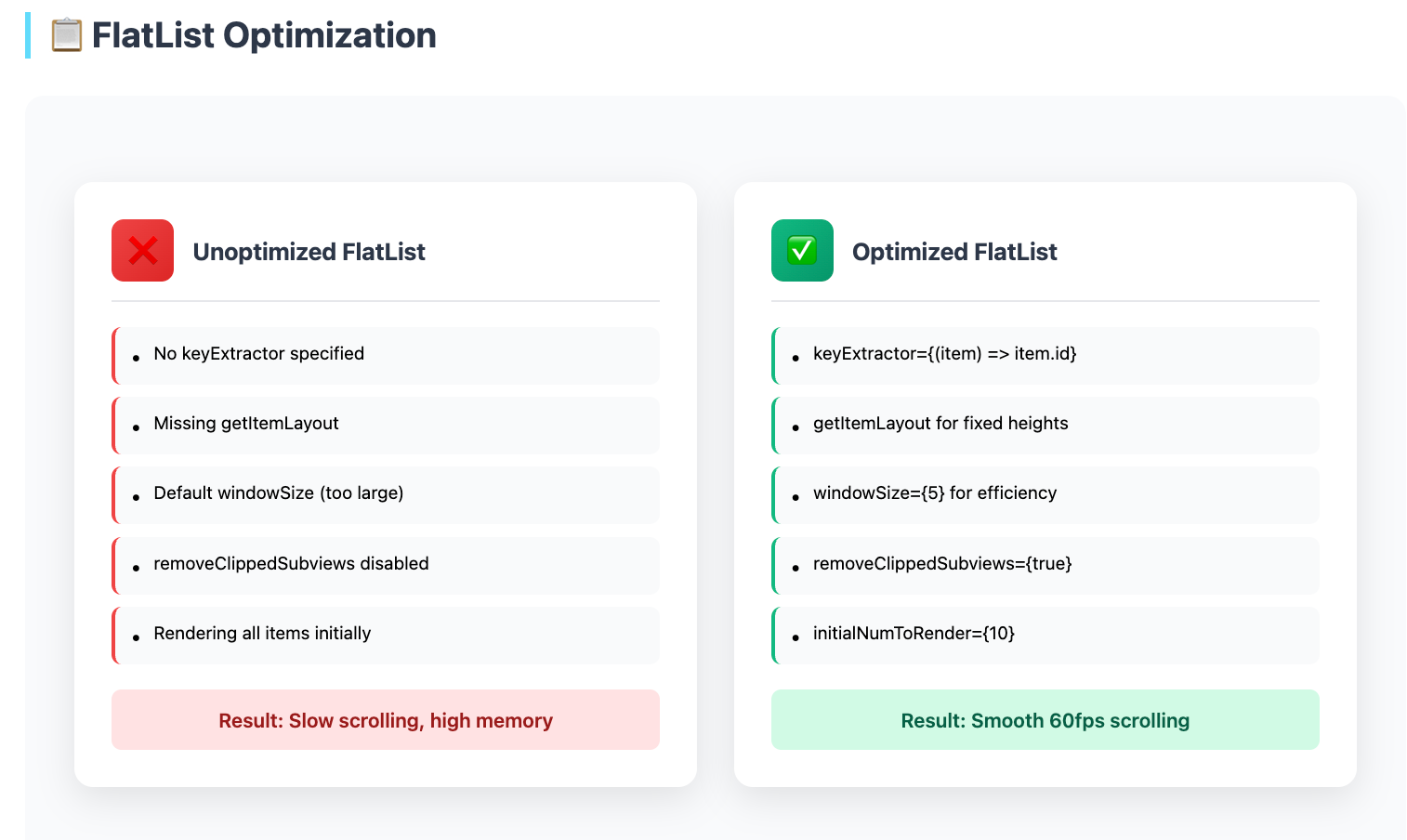
FlatList and SectionList are optimized for rendering large datasets, but improper configuration undermines their performance benefits. Many developers unknowingly disable virtualization or create performance bottlenecks through incorrect prop usage.
Unoptimized FlatList
// ❌ Bad: Multiple performance issues
<FlatList
  data={products}
  renderItem={({ item }) => <ProductCard product={item} />}
  // No key extractor - uses index by default
  // No window size configuration
  // No item layout optimization
/>
Optimized FlatList configuration
// ✅ Good: Properly optimized FlatList
<FlatList
  data={products}
  renderItem={renderItem}
  keyExtractor={item => item.id.toString()}
  getItemLayout={(data, index) => ({
    length: ITEM_HEIGHT,
    offset: ITEM_HEIGHT * index,
    index,
  })}
  initialNumToRender={10}
  maxToRenderPerBatch={10}
  windowSize={5}
  removeClippedSubviews={true}
  updateCellsBatchingPeriod={50}
/>
Why this matters
The getItemLayout prop is particularly impactful for lists with uniform item heights. It eliminates the need for React Native to measure items dynamically, dramatically improving scroll performance. The windowSize prop controls how many screen lengths of content to render beyond the visible area; smaller values improve initial render but may cause blank spaces during fast scrolling.
Pitfall #3: Image Loading Without Optimization
Images are often the largest performance bottleneck in mobile apps. Unoptimized images consume excessive memory, slow network requests, and cause UI jank during loading.
Loading full-resolution images
// ❌ Bad: Loading full-resolution images
<Image
  source={{ uri: 'https://example.com/product-4000x3000.jpg' }}
  style={{ width: 100, height: 100 }}
/>
Optimized image loading with FastImage
// ✅ Good: Optimized image loading with react-native-fast-image
import FastImage from 'react-native-fast-image';

<FastImage
  source={{
    uri: 'https://example.com/product-400x300.jpg',
    priority: FastImage.priority.normal,
    cache: FastImage.cacheControl.immutable,
  }}
  style={{ width: 100, height: 100 }}
  resizeMode={FastImage.resizeMode.cover}
/>

// For local images, use multiple resolutions
<Image
  source={require('./product.png')}
  style={{ width: 100, height: 100 }}
  // React Native automatically selects @2x or @3x based on device
/>
Why this matters
FastImage leverages native image caching (SDWebImage on iOS, Glide on Android), providing superior performance compared to React Native's built-in Image component. Always request appropriately sized images from your backend rather than downloading large files and scaling them down.
Pitfall #4: Expensive Operations in Render
Performing calculations, data transformations, or object creation during render causes these operations to run on every re-render, wasting CPU cycles and blocking UI updates.
Filtering and Sorting data during render
// ❌ Bad: Filtering and sorting on every render
const ProductScreen = ({ products, category }) => {
  // This runs on every render, even when products/category unchanged
  const filteredProducts = products
    .filter(p => p.category === category)
    .sort((a, b) => b.rating - a.rating);

  return (
    <FlatList data={filteredProducts} {...props} />
  );
};
Memoized computation
// ✅ Good: Memoize expensive calculations
const ProductScreen = ({ products, category }) => {
  const filteredProducts = useMemo(() => {
    return products
      .filter(p => p.category === category)
      .sort((a, b) => b.rating - a.rating);
  }, [products, category]);

  return (
    <FlatList data={filteredProducts} {...props} />
  );
};
Why this matters
UseMemo caches calculation results, recomputing only when dependencies change. This optimization is particularly valuable for expensive operations like filtering large arrays, complex calculations, or formatting data.
Pitfall #5: Blocking the JavaScript Thread
The JavaScript thread handles all business logic, state updates, and communication with native code. Long-running operations block this thread, preventing React Native from processing UI updates and creating a frozen, unresponsive app.
Blocking computation
// ❌ Bad: Heavy computation blocks UI
const processLargeDataset = (data) => {
  const results = [];
  for (let i = 0; i < 100000; i++) {
    // Complex calculation
    results.push(heavyComputation(data[i]));
  }
  return results;
};
Deferring work with InteractionManager
// ✅ Good: Use InteractionManager or Web Workers
import { InteractionManager } from 'react-native';

const processLargeDataset = async (data) => {
  await InteractionManager.runAfterInteractions();

  const results = [];
  for (let i = 0; i < 100000; i++) {
    results.push(heavyComputation(data[i]));

    // Yield control periodically
    if (i % 1000 === 0) {
      await new Promise(resolve => setTimeout(resolve, 0));
    }
  }
  return results;
};
Offloading work to a worker
// Or use react-native-workers for true multithreading
import { Worker } from 'react-native-workers';

const worker = new Worker('../workers/dataProcessor.js');
worker.postMessage({ data });
worker.onmessage = (event) => {
  const results = event.data;
  // Update UI with results
};
Why this matters
InteractionManager.runAfterInteractions() defers work until animations and interactions complete. For truly CPU-intensive tasks, Web Workers or libraries like react-native-workers enable true multithreading, moving computation off the main JavaScript thread entirely.
Pitfall #6: Animated Value Misuse
React Native's Animated API provides performant animations by running on the native thread, bypassing the JavaScript bridge. However, incorrect usage forces animations through JavaScript, creating janky 30fps animations instead of smooth 60fps ones.
JavaScript-driven animation
// ❌ Bad: Animation runs through JavaScript
const [position, setPosition] = useState(0);

useEffect(() => {
  const interval = setInterval(() => {
    setPosition(prev => prev + 1);
  }, 16); // ~60fps
  return () => clearInterval(interval);
}, []);

<View style={{ transform: [{ translateX: position }] }} />
Native-driven animation
// ✅ Good: Native-driven animation
const position = useRef(new Animated.Value(0)).current;

useEffect(() => {
  Animated.timing(position, {
    toValue: 100,
    duration: 1000,
    useNativeDriver: true, // critical: Runs on native thread
  }).start();
}, []);

<Animated.View
  style={{ transform: [{ translateX: position }] }}
Why this matters
Always set useNativeDriver: true for transform and opacity animations. Layout properties (width, height, margin, padding) cannot use the native driver due to layout calculation requirements, but transform and opacity handle 90% of animation needs.
Performance Monitoring Tools
- Performance Monitor: JS/UI FPS, bridge load
- Flipper: layout hierarchy for debugging, network inspector for API call optimization
- React DevTools: component re-render profiling
- why-did-you-render: detects avoidable re-renders during development
Key Performance Metrics to Track
- JS Frame Rate (during scroll & interactions)
- UI Frame Rate
- Time to Interactive (TTI)
- Memory usage & GC pauses
- Startup time
Common Optimization Scenarios
Scenario 1: E-commerce Product List
- Problem: Slow scrolling through 500+ products
- Solution: Implement FlatList with getItemLayout, memoize product cards, and lazy-load images with FastImage
- Result: Smooth 60fps scrolling, ~40% memory reduction
Scenario 2: Social Media Feed
- Problem: Janky animations when liking posts
- Solution: Use native-driven animations with useNativeDriver, debounce like button
- Result: Butter-smooth interactions, improved perceived performance
Scenario 3: Data Dashboard
- Problem: App freezes when processing analytics
- Solution: Move heavy calculations to Web Workers, use InteractionManager
- Result: Responsive UI during data processing
Conclusion
React Native performance optimization is an ongoing process, not a one-time fix. The six common pitfalls covered here account for the majority of performance issues in production apps.
To address:
- Start by profiling your app with React Native DevTools and Flipper to identify the actual bottlenecks.
- Focus optimization efforts on components that users interact with most frequently.
- Most performance issues stem from a handful of problematic screens; fix these hotspots before attempting broad optimizations.
With careful attention to these fundamentals and regular performance monitoring, React Native apps can achieve performance indistinguishable from native applications.
Frequently Asked Questions
Q: Should I use PureComponent or React.memo for all components?
A: No, only memoize components where re-renders are expensive or frequent. Memoization adds overhead; shallow prop comparison takes time and memory. Profile to identify problematic components rather than memoizing everything blindly.
Q: When should I use FlatList vs. ScrollView?
A: Use FlatList for lists with more than 20-30 items or when item count is dynamic/unknown. FlatList virtualizes content, rendering only visible items. ScrollView renders all children immediately, consuming memory and causing performance issues with large datasets.
Q: How do I know if the bridge is my bottleneck?
A: Enable the Performance Monitor in React Native DevTools. If JS frame rate is significantly lower than UI frame rate during interactions, you're likely overloading the bridge or JavaScript thread. Bridge traffic appears as spikes in the monitor.
Q: Does React Native's New Architecture solve all performance issues?
A: The New Architecture (Fabric/TurboModules) improves performance significantly but doesn't eliminate the need for optimization. Poorly written code still causes performance problems.
Q: Should I avoid setState in favor of useReducer for performance?
A: No significant performance difference exists between setState and useReducer. Choose based on complexity; useReducer for complex state logic, useState for simple values. Performance issues stem from unnecessary re-renders, not state management choice.
Q: How do I optimize third-party library performance?
A: Profile to identify which libraries cause issues. Consider alternatives, lazy-load heavy libraries, or implement features natively if a library severely impacts performance. Some poorly-optimized libraries simply can't be fixed without replacing them.